Sell Faster: 5 Pre Powerwash Checks for Chromebook Resale
September 4, 2026
Yes, run a Powerwash (factory reset) before you hand off a Chromebook to a new owner. Before you do, back up your files, sign out of every account, confirm the device isn’t tied to a school or employer, then wipe it and watch for the first-run screen. Skip any of those steps and you either lose files you needed or hand over a device that still won’t let the buyer log in.
TL;DR:
- Powerwash deletes all local user accounts, downloads, cached app data, and custom settings, but does not erase files stored in Google Drive or remove device management enrollment.
- Proper preparation involves backing up files, removing all accounts and connected devices, checking the AUE date, and confirming Google sign-in credentials before resetting.
- Performing a Powerwash from the login screen requires pressing Ctrl + Alt + Shift + R and ensuring the device stays plugged in throughout the process to prevent interruption.
- Enrolled or managed devices will re-lock to management screens after reset unless the administrator removes enrollment beforehand.
- Verifying the reset by reaching the first-run setup screen and photographing it provides clear proof the device is wiped and ready for transfer.
Table of Contents
- How Do You Powerwash a Chromebook Before Selling It?
- Quick Checklist: What to Do Before You Powerwash
- How to Powerwash a Chromebook: Logged-In and Login-Screen Methods
- What Powerwash Actually Removes, and What It Doesn’t
- Special Cases: Managed Chromebooks, Lost Passwords, and Boot Failures
- After Powerwash: Verifying the Wipe and Prepping for Handoff
- Backing Up Your Files Before You Wipe Anything
- Removing Google Accounts and Confirming Ownership After the Reset
- What to Watch Out for Before You Powerwash
- Updating Chrome OS Before You List the Device
- Do You Need More Than Powerwash to Erase Local Data?
- Checking for Hardware Issues Before You Sell
- The Real Priority Isn’t the Reset, It’s Everything Around It
- Prefer a Guaranteed Cash Sale Over Listing It Yourself?
- Sources
- FAQ
How Do You Powerwash a Chromebook Before Selling It?
A Powerwash is Chrome OS’s built-in factory reset. It clears every local user account, all files sitting in Downloads, and any settings you changed, then restores the machine to the state it left the factory in. That’s the entire job for anyone trying to prepare a Chromebook for sale: get your data off, get your accounts off, then let the reset do its work.
The tricky part isn’t the reset itself, it’s what happens around it. People lose photos because they didn’t wait for Google Drive to finish syncing. They list a device that still shows a school login screen because nobody warned them that Powerwash doesn’t touch device management. This guide walks through both, plus the checks that actually matter to a buyer: update status, remaining support life, and whether the hinges still work.
Quick Checklist: What to Do Before You Powerwash
Rushing straight to Powerwash without prepping first is the single biggest mistake sellers make. Handle these five things first.
- Back up everything local. Move Downloads folder contents and any Android app data you care about to Google Drive or a USB drive. If you were mid-upload, wait about 30 minutes after the transfer before wiping, since Drive sync can lag behind what you see on screen.
- Strip out every account. Remove Smart Lock pairing with your phone, forget any Bluetooth devices you connected, and pull out SD cards or external drives.
- Write down the model number, serial number, and Auto Update Expiration (AUE) date. You’ll want these for the listing anyway, and checking the AUE now tells you if the reset is even worth doing on an older unit.
- Test your Google sign-in before you wipe anything. If you can’t remember your password now, you definitely won’t remember it once the reset locks you out of the settings that would help you recover it.
- Confirm the device isn’t enrolled to a school or company. If it is, stop and contact the administrator first. A regular Powerwash will not remove that enrollment. You’ll cover that scenario in detail further down.
Pro Tip: Take a screenshot of your Chromebook’s model number and AUE date (found under Settings > About Chrome OS) before you reset it. Once the Powerwash runs, that information is still viewable, but pulling it beforehand means you’re not fumbling through settings on a device you’re trying to finish packaging.
How to Powerwash a Chromebook: Logged-In and Login-Screen Methods
There are two ways to trigger a Powerwash, and which one you use depends on whether you can still sign in.
Method A: Powerwash from inside Chrome OS settings
If you’re logged in and the device is working normally, this is the more direct path:
- Open Settings and click Security and privacy (called “System” on some devices).
- Scroll to Reset settings or Powerwash.
- Click Powerwash, then confirm with Restart.
- When the device reboots, a dialog appears. Click Powerwash again, then Continue.
- Wait for the reset to complete. The Chromebook will restart and land on the first-run “Let’s get started” screen.
Method B: Powerwash from the login screen
This is the method to use if you’re selling a device you’re already signed out of, handed off from someone else, or one you just don’t want to log into again:
- From the sign-in screen, press Ctrl + Alt + Shift + R together.
- Click Restart in the dialog that pops up.
- After the reboot, select Powerwash, then Continue.
Both methods lead to the same result, and Google’s own documentation confirms the process erases user data on the drive rather than just logging you out. Android Police notes the keyboard shortcut is identical across nearly every Chromebook model, though a handful of convertible or detachable models occasionally show a slightly different prompt sequence during the restart.
A few practical notes before you start either method. Keep the Chromebook plugged into power for the entire process. A reset that gets interrupted by a dead battery partway through can leave the device in an inconsistent state that’s harder to recover from than if you’d just let it run. Also make sure you actually know your Google account password before you begin Method A, since you’ll need to sign back in briefly to confirm the reset worked, even if your plan is to leave it at the first-run screen for the buyer.
Statistic Callout: On most Chromebook hardware, a Powerwash typically takes a few minutes from confirmation to the first-run screen. Older or lower-storage models can run slightly longer. Budget 15 minutes for the whole process so you’re not left wondering if the device has frozen.
What Powerwash Actually Removes, and What It Doesn’t
Knowing the boundaries of a factory reset matters as much as knowing how to run it. A Powerwash wipes:
- Every local user account profile stored on the device.
- Files in the Downloads folder and any other locally saved documents.
- Locally cached Android app data, offline files, and custom settings like wallpaper, keyboard layout, and extensions.
What it leaves untouched is just as important. Files sitting in Google Drive aren’t affected at all, since Drive stores them in the cloud rather than on the device’s storage. That’s actually good news for backup purposes, but it also means you can’t rely on Powerwash to clear anything you’ve synced there. If you want those files gone from your account entirely, you need to delete them from Drive separately.
Android apps present a similar split. The local cache and any files an app stored on-device get wiped, but data those apps synced to their own servers, like a saved game state in a cloud-save title, stays tied to your account on the app maker’s end, not the Chromebook. And a Powerwash does not remove enterprise or school enrollment. That distinction trips up more sellers than any other part of this process, and it’s worth its own section.
One more thing worth knowing: a factory reset clears user data but Chrome OS retains a small amount of diagnostic metadata (crash logs, hardware identifiers) for troubleshooting purposes. None of it contains personal files or account information, so it’s not a concern for resale privacy.
Special Cases: Managed Chromebooks, Lost Passwords, and Boot Failures
Most Powerwash situations are straightforward. A few aren’t, and it’s worth knowing which category you’re in before you list the device.
Managed or enrolled devices. If a Chromebook was issued by a school or employer, it’s likely enrolled in a device management system. iFixit’s community guidance is blunt about this: ordinary Powerwash does not remove that enrollment. The device will boot straight back into a managed sign-in screen, often locked to specific accounts, and unusable for a private buyer. If this applies to you, contact the enrolling administrator to request unenrollment before you ever list it. Selling an enrolled device without resolving this almost always ends in a return or a dispute, since the buyer discovers the lock only after paying.
Forgotten owner account. If you can’t remember the Google account password tied to the device, use Google’s account recovery process before attempting a reset. Once Powerwash runs, you’ll need working credentials to get past the first-run screen and confirm the wipe succeeded, even if you don’t plan to keep using the device.
Chromebook won’t boot at all. Try the login-screen shortcut, Ctrl + Alt + Shift + R, since it works even when the device is stuck or unresponsive to normal navigation. If that fails too, recovery media created from another computer is the next step. Persistent boot failures after that point usually mean a hardware issue worth raising with the manufacturer before you try to sell it as functional.
Pro Tip: If a Chromebook shows any enrollment lock screen after a Powerwash, don’t list it as “factory reset and ready to go.” Disclose the enrollment status upfront. Buyers researching Chromebooks know exactly what a managed lock screen looks like, and finding one after purchase is the fastest way to trigger a refund request.
After Powerwash: Verifying the Wipe and Prepping for Handoff
Once the reset finishes, confirm it actually worked before you package anything up.
- Watch for the first-run “Let’s get started” screen. This is Chrome OS asking for a new owner to set the language, connect to Wi-Fi, and sign in fresh. Seeing it means the wipe succeeded and no old account data remains.
- Do not sign in with your own account again “just to check.” Doing so re-establishes you as the device owner, and you’ll need to Powerwash a second time to clear it.
- Take a photo of the powered-on first-run screen. This is simple proof for a buyer that the device is clean and ready, and it heads off the “is this really wiped?” question before it’s asked.
- Note the battery health, AUE date, and model number in your listing description. Buyers researching a used Chromebook specifically look for how many years of software updates remain.
- Decide whether to leave the device powered on at the first-run screen or shut it down for shipping. Either is fine; just don’t power it back on and sign in afterward.
- Wipe down the keyboard, screen, and casing, gather the charger and any original accessories, and check that ports aren’t clogged with dust before boxing it up.
Backing Up Your Files Before You Wipe Anything
The single most common regret sellers report after a Powerwash is realizing a file didn’t make it to the cloud in time. Chrome OS makes backup fairly painless, but the timing matters more than people expect.
Move anything in your Downloads folder to Google Drive first, either by dragging files in the Files app or letting Drive’s own sync handle it automatically. Here’s the part that catches people off guard: uploading a file and having it finish syncing aren’t the same moment. AndroidCentral recommends waiting roughly 30 minutes after a large upload before you trust that everything has actually landed in Drive, particularly on a slower connection or with a lot of files at once.
If you use Android apps on the Chromebook, check whether they store data locally or sync to their own account-based servers. A note-taking app that syncs to its own cloud service will keep your notes regardless of the Powerwash. One that only saves locally won’t, so export or screenshot anything you need before wiping.
External storage is the easy fallback if you’d rather not depend on sync timing at all. A USB drive or SD card copy takes a few minutes and removes any guesswork about whether the cloud caught everything. Once you’ve confirmed your backup, whichever method you used, you’re clear to move on to removing accounts and running the reset itself.
Removing Google Accounts and Confirming Ownership After the Reset
Before you Powerwash, remove every Google account from the device, not just your primary one. Go to Settings, find the Accounts section, and delete each profile listed, including any secondary accounts you added for family members or testing. Leaving a secondary account attached doesn’t prevent the reset from running, but it’s good hygiene and takes thirty seconds.
Disable Smart Lock if you had it paired with an Android phone, since that pairing is tied to your account and won’t clear on its own the way local settings do. It’s a small step people forget, and it can leave a confusing “unlock with phone” prompt active on a device that’s supposed to be account-free.
After the Powerwash completes, the real confirmation happens on the first-run screen. If you see the “Let’s get started” language and Wi-Fi setup prompt with no pre-filled account information, the reset removed your ownership cleanly. If you’re setting the device up briefly to double-check the reset worked, sign in with a temporary or test account rather than your own, then Powerwash once more before shipping. That guarantees the buyer’s first sign-in is genuinely their own, not a session you technically still have access to. Removing a Google account correctly the first time avoids that extra round-trip entirely.
What to Watch Out for Before You Powerwash
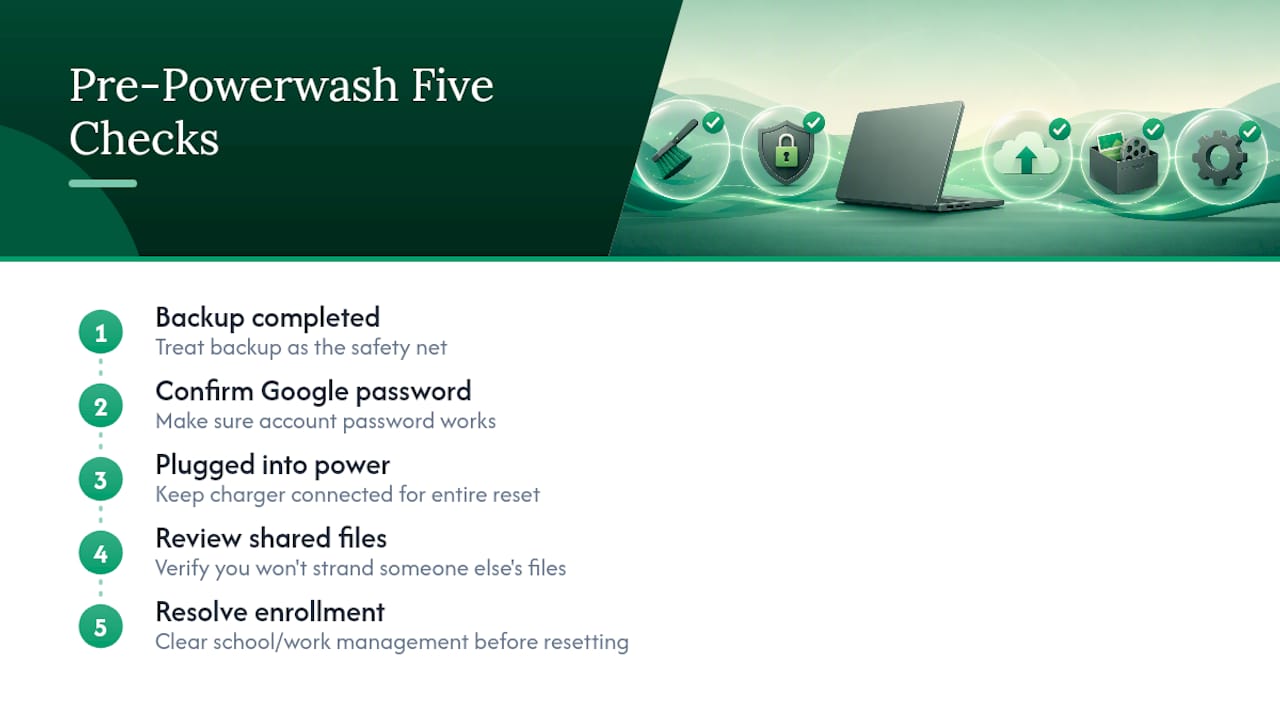
A Powerwash is permanent the moment you confirm it. There’s no undo, no recycle bin, and no “are you really sure” beyond the initial prompt, so treat your backup as the actual safety net, not the reset dialog.
The biggest risk isn’t the reset itself, it’s timing. Running Powerwash while a Drive sync is still in progress, or before you’ve confirmed your Google account password works, are the two mistakes that cause the most grief. Both are avoidable with a five-minute check beforehand.
Battery level matters more than people assume. A Chromebook that loses power mid-reset can end up in a state where it boots to an error screen instead of the first-run setup. Keep it plugged in for the entire process, start to finish, no exceptions.
If the Chromebook belongs to a shared household or was previously used by a family member, double-check that removing your account won’t strand someone else’s files they were counting on. And if you’re at all unsure whether the device is enrolled in school or work management, resolve that before you Powerwash rather than after. A reset run on an enrolled device doesn’t create a new problem, but it does waste the ten minutes on a reset that won’t stick anyway until the enrollment itself is cleared.
Updating Chrome OS Before You List the Device
An outdated Chrome OS version is one of the easiest things for a buyer to spot, and one of the quickest to fix before you sell. Go to Settings, then About Chrome OS, and click Check for updates. If one’s available, let it install and restart the device before you run your Powerwash, not after.
There’s a practical reason for this order. Running the update first, then wiping, means the buyer’s first-run experience starts on current software rather than pulling a large update the moment they sign in for the first time. That’s a better first impression, and it avoids the buyer wondering if the device is being sold specifically because it’s falling out of support.
While you’re in that settings menu, note the Auto Update Expiration date. Every Chromebook has a fixed window during which Google issues security and feature updates, and that date is public information you can check ahead of listing. A device with several years of updates left is a meaningfully stronger sale than one approaching its cutoff, and buyers researching Chromebooks specifically know to ask about it. Listing the AUE date upfront, rather than leaving a buyer to ask, tends to reduce back-and-forth questions and speeds up the sale.
Do You Need More Than Powerwash to Erase Local Data?
For the overwhelming majority of personal sellers, Powerwash alone is sufficient. It follows the same overwrite process Chrome OS uses for any full data wipe, and there’s no consumer-grade tool that goes meaningfully further on a Chromebook’s built-in storage.
Where it gets more complicated is bulk or business disposal. If you’re clearing out a batch of Chromebooks for an office, classroom, or district, the calculation changes. You’re not just running Powerwash multiple times, you’re also tracking serial numbers, confirming each device’s AUE individually, and requesting batch unenrollment from whoever manages the fleet, since a single missed enrollment can hold up an entire batch sale.
For that kind of volume, a documented Certificate of Data Erasure that references the NIST 800-88 standard carries real weight with institutional buyers or compliance officers who need a paper trail, not just a personal assurance that the devices were wiped. Individual sellers rarely need that level of documentation, but anyone handling multiple devices for a school, nonprofit, or small business should treat it as a serious upgrade over “we ran Powerwash on all of them.”
Checking for Hardware Issues Before You Sell
A clean Powerwash means nothing to a buyer if the hinge is loose or three keys don’t register. Spend ten minutes on a physical check before you finalize your listing price.
Open and close the lid a few times, checking for looseness, unusual resistance, or any grinding sound from the hinge. Test every key, since a Chromebook missing a functioning space bar or arrow key is a different (and cheaper) sale than one with a fully working keyboard. Press firmly on the trackpad’s edges and corners to check for consistent click response.
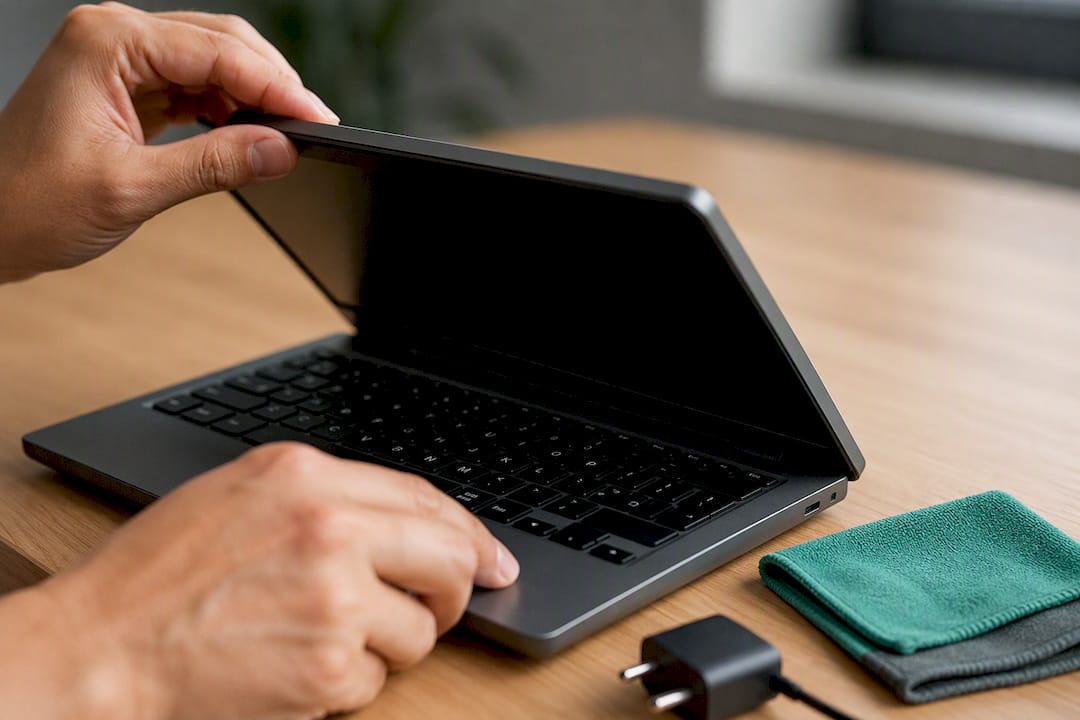
Check the screen for dead pixels, visible pressure marks, or discoloration in the corners, ideally against a plain white or black background where flaws show up clearly. Plug in the charger and confirm it charges reliably rather than intermittently. Inspect the ports, USB, headphone jack, and charging port, for lint, dust, or bent pins that could affect connectivity.
Wipe down the exterior with a microfiber cloth and a little isopropyl alcohol for the keyboard and trackpad, avoiding excess moisture near any ports or seams. A device that looks cared for photographs better and tends to move faster in a listing than one that looks like it just came out of a backpack.
The Real Priority Isn’t the Reset, It’s Everything Around It
Most guides treat Powerwash as the whole story: run the reset, done, sell the laptop. That’s backwards. The reset itself is the easy, mechanical part. The failure points are almost always upstream or downstream of it, forgetting to check for school enrollment, wiping before a Drive sync finished, listing a device without checking its AUE date.
If I had to pick the one step sellers skip most and regret most, it’s the enrollment check. A Powerwash on a managed device doesn’t fail loudly. It completes, looks normal, and then dumps the buyer into a lock screen they can’t get past, which turns into a return, a bad review, or both.
The honest advice here is to slow down at the checklist stage, not the reset stage. Anyone can press Ctrl+Alt+Shift+R. Fewer people confirm their AUE date, verify their sign-in works, or check whether a device was ever enrolled somewhere. Get those right first, and the actual wipe takes ten minutes and causes zero problems.
, Andy
Prefer a Guaranteed Cash Sale Over Listing It Yourself?
A private sale gets you the most money if everything goes smoothly, but it also means photographing the device, writing a listing, answering buyer questions, and hoping the sale doesn’t fall through after you’ve already shipped it. Buybackbear skips that entire process. You get an instant online quote, ship the Chromebook free with a prepaid label, and get paid the same day it’s inspected, no listing, no back-and-forth with a stranger over price.
Every device Buybackbear receives is wiped to the NIST 800-88 standard with a free Certificate of Data Erasure, so you’re not solely relying on your own Powerwash to guarantee the data is gone. That matters if you’re clearing out more than one device, or if you’d simply rather have documentation than a screenshot of a first-run screen. Payment comes as real cash by various payment methods, not store credit spread across a phone bill. If your Chromebook still works but you’d rather not deal with buyers, check what it’s worth on the laptop buyback page and get your quote in a few minutes.
Sources
For the official steps and terminology, Google’s own Chromebook support page covers the Powerwash process directly from the source. Android Police is a solid supplemental walkthrough with screenshots for both reset methods. If your device turns out to be enrolled, iFixit’s community thread explains what unenrollment actually requires. For anyone weighing a private sale against a guaranteed payout, Buybackbear’s trade-in versus sell comparison and Google device selling guide cover the practical tradeoffs in more depth.
- Reset your Chromebook to factory settings - Chromebook Help
- How to Powerwash (factory reset) a Google Chromebook
- How to remove management from school Chromebook - iFixit Answers
- How to reset your Chromebook (Powerwash)
FAQ
Does Powerwashing a Chromebook remove everything?
Powerwash removes all local user accounts, Downloads, cached app data, and custom settings. It does not delete files stored in Google Drive or remove school or employer device enrollment.
Does a factory reset delete everything on a Chromebook?
It deletes everything stored locally on the device, including account profiles and local files, but cloud-synced content in Google Drive and any enterprise enrollment remain untouched.
How do I reset my Chromebook for a new owner?
Back up your files, remove all accounts and paired devices, then run Powerwash either through Settings or with Ctrl+Alt+Shift+R at the login screen, and confirm the device lands on the first-run setup screen before handing it off.
Is it illegal to Powerwash a school Chromebook?
Powerwashing a school-issued Chromebook you don’t own or have permission to reset can violate school policy or property rules, even though the reset itself isn’t a criminal act; check with the issuing school before wiping any device that isn’t clearly your own to keep.
What if my Chromebook is still managed after I Powerwash it?
Contact the administrator who enrolled the device and request unenrollment, since ordinary Powerwash cannot remove school or employer management on its own.
Recommended
Ready to sell?
Get an instant quote, free prepaid shipping, and fast cash that beats carrier trade-in credit.
Selling your device here, at a glance
Get my instant quote →- Instant quote in about 30 seconds, price locked while you decide
- Cash by PayPal, Zelle, Venmo or check after inspection, no fees
- Free prepaid label both ways, free return shipping if you decline
- We beat any competitor's written quote by $2
- Cracked screen, broken or won't power on? Still worth real money
- Certified NIST 800-88 data wipe with an emailed certificate
- Trade-in value paid in cash, not a 24-36 month carrier bill credit
- Every model priced: unlocked or carrier-locked, any storage size