How to Remove a Google Account From an Android Phone
August 24, 2026
To remove a Google account on Android, open Settings → Accounts (sometimes labeled Passwords & accounts or Manage accounts), tap the account, choose Remove account, and confirm. That’s it for most phones.
One catch: removing the account wipes its synced data from the device, mail, contacts, calendar entries, but it does not delete the account itself from Google’s servers. The account still exists; you’ve just unlinked it locally.
- If it’s the only Google account on the phone, expect a prompt for your PIN, pattern, or password before the removal finishes.
- Apps tied to that account stay installed but may lose Play Store access under it.
- Deleting the account entirely is a separate, much bigger step done through Google’s own settings, not your phone.
Key Takeaways
Removing a Google account on Android clears local sync data but leaves the account itself untouched on Google’s servers, so a factory reset and, for bulk or business devices, a certified wipe are what actually make a device safe to sell or hand off.
| Point | Details |
|---|---|
| Removal is local only | Deleting the account from a phone erases synced mail and contacts on-device but not the account on Google’s servers. |
| Samsung uses its own menu | One UI users go through Settings → Accounts and backup → Manage accounts, not the generic Android path. |
| Last account needs your PIN | Removing the only Google account on a phone requires your screen lock credential to confirm. |
| Factory reset protection blocks resets | A used phone will demand the original owner’s credentials after a reset unless FRP was cleared beforehand. |
| Certified wipes add proof | Buybackbear’s NIST 800-88 wipe and Certificate of Data Erasure give sellers documented erasure beyond a standard factory reset. |
Table of Contents
- How Do I Remove a Google Account on Android Step by Step?
- How Do You Remove a Google Account on a Samsung Galaxy Phone?
- What Actually Happens When You Remove a Google Account?
- What if You Don’t Have the Phone or the Password?
- Preparing a Device for Sale or Trade-In: The Checklist
- Why Certified Wipes Matter More Than People Think
- Sell Your Device the Secure Way After You Remove Your Account
- Sources
- FAQ
How Do I Remove a Google Account on Android Step by Step?
Menu names shift a little between phone brands and Android versions, but the sequence stays close to identical everywhere.
- Open Settings, then scroll to Accounts, Passwords & accounts, or Manage accounts (the label depends on your manufacturer and Android version).
- Tap Google, then select the specific account you want off the device. Some phones list every synced account on one screen; others nest Google accounts under a separate submenu.
- Tap Remove account. You’ll usually see a short warning about local data being deleted.
- Confirm the removal. If it’s the last Google account on the phone, you’ll be asked to enter your screen lock credential first.
If the Remove account option is grayed out or missing entirely, something else is managing that account. Corporate mobile device management profiles, a “device owner” app installed by a school or employer, or parental control software can all block manual removal until an administrator releases the device. Check Settings → Security → Device admin apps to see what’s installed.
Pro Tip: Before you remove anything, open Google Photos and confirm your backup is actually finished, not just “backing up.” A stalled upload is the number one reason people lose photos during this process.

Once the account is gone, sign back in any time using the same email and password. Samsung’s own support documentation confirms the removal is fully reversible, so there’s no risk in doing this before a trade-in or before handing a phone to a family member.
How Do You Remove a Google Account on a Samsung Galaxy Phone?
Samsung’s One UI reorganizes the account menu compared to stock Android, so the path looks a little different even though the end result is the same.
- Go to Settings → Accounts and backup → Manage accounts.
- Tap the Google account you want removed.
- Select Remove account, then confirm on the pop-up.
- If Samsung’s device protection or Google’s Advanced Protection Program is active, you may hit an extra identity check, sometimes a security key prompt, before the removal completes.
Older One UI versions sometimes bury this under Settings → Cloud and accounts instead of Accounts and backup, so if you don’t see the menu where expected, search “accounts” in the Settings search bar rather than hunting through submenus. Samsung’s official removal steps note that carriers occasionally customize this screen further, which explains why a Galaxy on one carrier looks slightly different from the same model on another.
What Actually Happens When You Remove a Google Account?
Removing an account is a local action, not a deletion. Email, contacts, and calendar entries synced to that account disappear from the phone, but nothing happens to the account on Google’s end.
Installed apps stay put. They just lose the connection to that account, which can mean losing Play Store purchase history or update access tied to it. Photos, Drive files, and Gmail messages remain exactly where they were: in the cloud, reachable the moment you sign back in on any device.
- Local sync data (mail, contacts, calendar): deleted from the phone.
- Cloud data (Photos, Drive, Gmail): untouched.
- Google Pay: cards and passes linked to that account stop working on the device.
- Find My Device: loses the ability to track that phone under that account.
- Password manager access: saved passwords tied to that account become unavailable locally.
If you’re selling, gifting, or recycling the phone, removing the account is not enough on its own. A full factory reset is what actually erases everything else, apps, files, saved Wi-Fi passwords, downloaded media, and it’s the step that matters most before the device leaves your hands.
What if You Don’t Have the Phone or the Password?
Lost, stolen, or handed to you secondhand, a phone without its original credentials is a different problem, and the fix depends on whether the device is online.
- If the phone is still connected to the internet, go to your Google Account’s security page or use Find My Device, select the device, and choose Sign out or Erase device.
- If you bought the phone used and it still shows the previous owner’s account, that’s Factory Reset Protection at work. Android deliberately asks for the original account credentials after a reset specifically to deter theft, so there’s no legitimate device-side workaround.
- Contact the seller or previous owner directly and ask them to remove the account themselves, or return the device through the marketplace or carrier you bought it from.
Pro Tip: If you’re buying a used phone in person, don’t accept “it’s fine, I’ll remove it later” from the seller. Watch them remove the account and factory reset the device before you hand over payment.
Skip any service online that promises to “bypass FRP” for a fee. These tools mostly don’t work on current Android versions and often exist to harvest payment details from desperate buyers.
Preparing a Device for Sale or Trade-In: The Checklist
A little prep before you box up a phone saves you from a support call later, and it protects whoever gets the device next from stumbling onto your old data.
- Confirm your photo and file backups finished, or manually export anything Google Photos didn’t catch.
- Remove Google Pay cards and any other stored payment methods before you touch the account settings.
- Take out the SIM card and any SD card, and turn off the screen lock so the next owner isn’t stuck at a PIN prompt.
- Remove the Google account, then run a full factory reset. Removing the account alone is not a substitute for a reset.
- For a business disposing of several devices at once, a certified NIST 800-88 data wipe gives you documented proof of erasure that a standard factory reset doesn’t provide.
If the plan is to sell the device rather than just wipe it, check what it’s worth before you reset anything, since some trade-in tools and calculators can give you a number in under a minute.
Why Certified Wipes Matter More Than People Think
Most people treat a factory reset as the finish line, and for a personal device changing hands between friends, it usually is. Where it falls short is proof. A factory reset tells you the data is gone; it doesn’t give you anything to show a client, an auditor, or your own IT department that erasure actually happened to a documented standard.
That gap is exactly why standards like NIST 800-88 exist, and why Buybackbear builds every device processed through its buyback service around that standard: instant quote, free prepaid shipping, inspection, certified wipe, same-day payment. For one phone, a self-service reset is fine. For a stack of retired laptops or a fleet of company phones, a certificate of erasure is the difference between “we’re pretty sure it’s clean” and having a paper trail.
Sell Your Device the Secure Way After You Remove Your Account
Once your Google account is off the phone and the factory reset is done, you’re holding a device that’s worth actual cash, not just clutter in a drawer. Buybackbear turns that into same-day money by PayPal, Venmo, debit card, or bank transfer, no carrier bill credit spread out over two years, no contract.
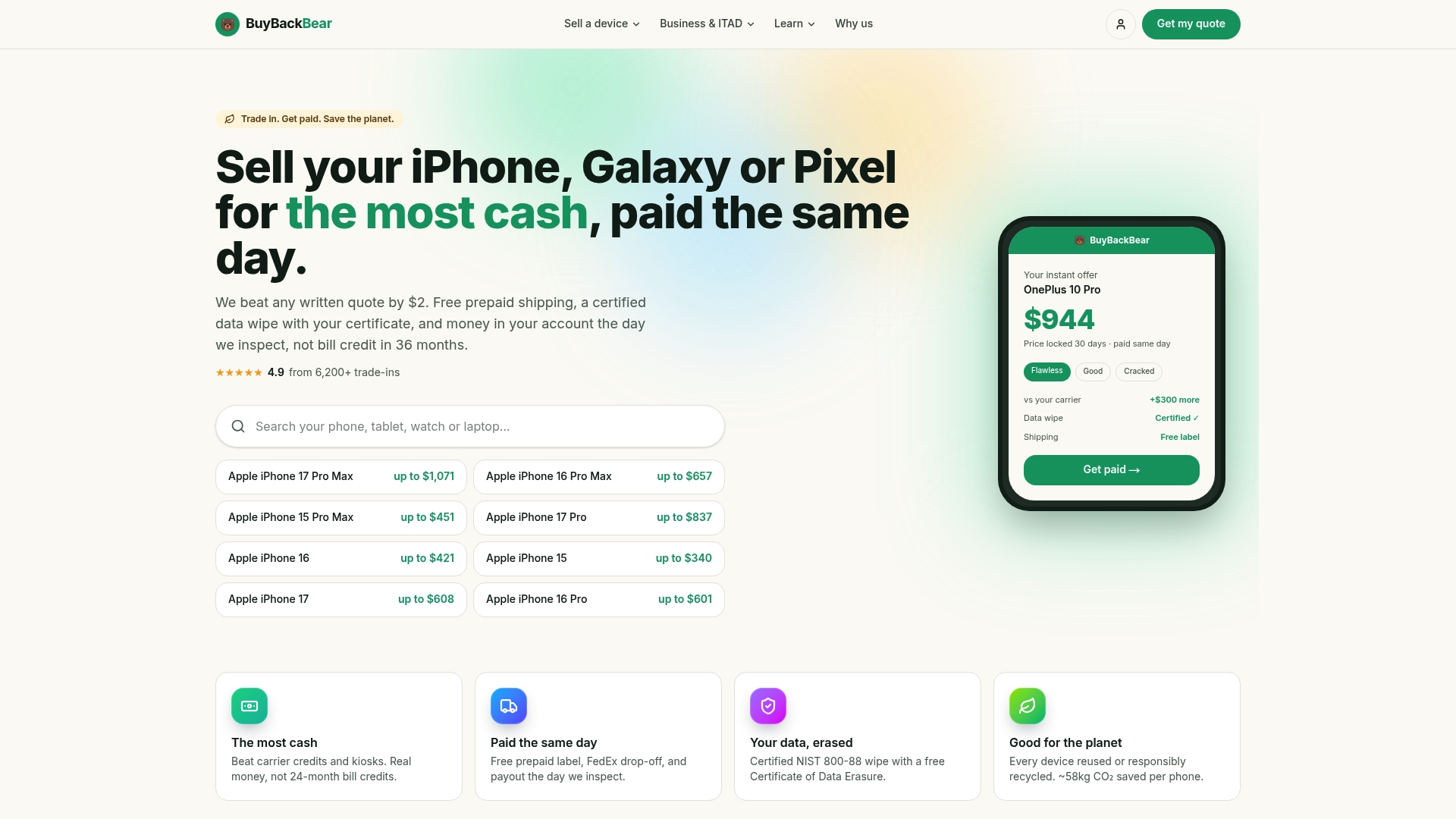
Get an instant quote for your phone, and Buybackbear ships you a free prepaid label. Samsung owners can go straight to the Galaxy trade-in page for device-specific pricing. Every unit gets wiped to the NIST 800-88 standard with a free Certificate of Data Erasure, on top of whatever account removal and reset you’ve already done yourself, that part’s still on you before it ships. Businesses retiring multiple devices at once can use the bulk buyback program instead of handling disposal one phone at a time. Once your quote lands, print the label, drop the box, and get paid the same day Buybackbear inspects it.
Sources
FAQ
Does removing a Google account from a phone delete everything?
No. It removes synced local data like mail and contacts from the device, but files in Google Photos, Drive, and Gmail stay in the cloud, and the account remains active on Google’s end.
How do I remove a Google account from my Android phone after a factory reset?
If the phone still has an account attached after a reset, that’s Factory Reset Protection, and you’ll need the original owner’s Google credentials to get past the setup screen; there’s no on-device workaround.
How do I remove the previous owner’s Google account on a used phone?
You need the previous owner’s password to remove the account properly, or ask them to sign out remotely through their Google Account security dashboard before you take possession of the phone.
Can I remove a Google account without a password?
Only if you’re already signed in on the device; Android lets you remove an active session without re-entering the password, but adding, restoring, or bypassing FRP on a locked device always requires the original credentials.
What’s the difference between removing an account and unlinking a phone from an Apple ID?
Removing a Google account happens inside Android’s account settings and only affects that device, while unlinking an iPhone from an Apple ID is a separate process handled through Apple’s own account tools, not something Android settings can touch.
Recommended
Ready to sell?
Get an instant quote, free prepaid shipping, and fast cash that beats carrier trade-in credit.
Selling your device here, at a glance
Get my instant quote →- Instant quote in about 30 seconds, price locked while you decide
- Cash by PayPal, Zelle, Venmo or check after inspection, no fees
- Free prepaid label both ways, free return shipping if you decline
- We beat any competitor's written quote by $2
- Cracked screen, broken or won't power on? Still worth real money
- Certified NIST 800-88 data wipe with an emailed certificate
- Trade-in value paid in cash, not a 24-36 month carrier bill credit
- Every model priced: unlocked or carrier-locked, any storage size