Transfer Data: Verify First, Then Sell With NIST 800-88 Proof
September 26, 2026

If both phones are in your hands, do a direct device-to-device transfer during setup: Quick Start for iPhone, a cable-based transfer for Android. If you only have the new phone, restore from your Apple or Google cloud backup instead. Either way, back up before you touch anything, keep both devices charged and connected, and don’t wipe the old phone until you’ve confirmed everything landed on the new one.
TL;DR:
- Using a cable-based transfer for Android or Quick Start for iPhone ensures faster and more reliable data migration, especially for large media libraries.
- Always back up your old device with the latest cloud or local copy, and manually export any non-syncing data before starting the transfer process.
- Transfer of app-specific data like authenticator codes, call logs, and banking info often requires manual re-seating or fresh login to prevent lockouts.
- Confirm all critical apps and data appear correctly on the new device before wiping or selling the old one to avoid data loss.
- Properly wiping the old device with verified secure erasure standards and removing accounts prevents recovery and protects privacy before resale.
Table of Contents
- How Do You Prepare Before You Transfer Data to a New Phone?
- How Do You Move Data Between Two Android Phones?
- What’s the Best Way to Transfer Data Between Two iPhones?
- Can You Move Data From Android to iPhone or Back?
- How Do You Transfer WhatsApp, Authenticator Apps, and Banking Apps?
- What Should You Check Right After the Transfer Finishes?
- What If You No Longer Have Your Old Phone?
- How Do You Securely Wipe Your Old Phone Before Selling It?
- How Long Does a Phone Transfer Take, and What Usually Goes Wrong?
- A Checklist Beats a Guess Every Time
- Ready to Sell Your Old Phone? Get Paid Once Your Data Is Safely Moved
- Sources
- FAQ
How Do You Prepare Before You Transfer Data to a New Phone?
The transfer itself is the easy part. Losing something because you skipped a step beforehand is what actually ruins people’s week. Cloud restores and cable transfers both stall on low power more often than people expect.
- Run a fresh iCloud backup or Google Account backup so the copy you restore from is current, not from three weeks ago.
- Manually export anything that doesn’t auto-sync: local documents, offline app data, PDFs you saved outside cloud storage.
- Decide what happens to your SIM or eSIM, and pull the SD card if you’re keeping it rather than transferring it.
- Write down your Apple ID or Google credentials, plus any two-factor recovery codes, since you’ll need them mid-setup.
- Note how your authenticator app handles account migration, since most require action before you switch devices, not after.
Also keep NIST 800-88 in mind now, even though it applies later. It’s the erasure standard you’ll want the old phone wiped to once you’re done, and planning for it early means you won’t scramble at the end.
Pro Tip: Screenshot your two-factor recovery codes before you start. If your authenticator app lives only on the old phone and that phone gets wiped before you re-seat your accounts, you can lock yourself out of email, banking, and social logins in one move.

How Do You Move Data Between Two Android Phones?
Android’s setup flow builds device-to-device transfer right in, and cable beats wireless almost every time for the amount of data that actually lands successfully.
- Power on the new Android phone and choose “copy your data” during setup.
- Connect the two phones with a cable when one is available. It’s faster and more reliable than Wi-Fi Direct for large photo and video libraries.
- If you don’t have the old phone, sign into the same Google account on the new device and select the backup you want to restore.
- Samsung owners get an extra option: Smart Switch, which Samsung itself recommends running wired when you’re moving a large photo or video library, since that’s what breaks first over Wi-Fi.
Contacts, photos, messages, calendar entries, and most apps carry over cleanly. What often doesn’t: app-specific login sessions, some game progress saved locally instead of to a cloud save, and call logs on certain carrier setups.
Timing varies. A cable transfer of a modest photo library can finish in 15 to 20 minutes. A full cloud restore can take up to 24 hours if you’re pulling everything from Google’s servers instead of a local device. If a transfer stalls past that window, check your Wi-Fi signal first. That’s the most common culprit, not a corrupted backup.
What’s the Best Way to Transfer Data Between Two iPhones?
Apple built three distinct paths, and which one you want depends on what you’re trying to preserve.
- Quick Start is the default and the fastest: bring both iPhones close together, and the new one detects the old one automatically. It requires both devices nearby and reasonably current iOS versions, and it transfers data directly without needing a cloud round trip for most content.
- iCloud backup restore works when you don’t have the old iPhone, or you’d rather not sit both devices next to each other for an hour. Here’s the distinction that trips people up: syncing keeps things live and current, while a backup is a snapshot. Some items, like your Home Screen layout and settings, restore right away; the rest downloads in the background over Wi-Fi.
- Finder or iTunes restore from an encrypted computer backup is the one path that reliably brings over Health and Activity data, since ordinary iCloud restores don’t always carry that information the same way. If you track workouts or medical data in Health, this is worth the extra step.
If you’ve already gone through setup on the new iPhone and realize you picked the wrong path, don’t try to patch it after the fact. Erase the new iPhone (Settings > General > Transfer or Reset iPhone > Erase All Content and Settings) and start the restore over with the right method.
Pro Tip: If you’re not sure whether you’ll need Health data on the new phone, make the encrypted Finder/iTunes backup anyway. It costs you ten extra minutes and covers you either way.
Can You Move Data From Android to iPhone or Back?
Crossing platforms takes an extra tool, and the sequence matters more than on same-platform transfers.
- Android to iPhone: Use Apple’s Move to iOS app. The new iPhone needs to be unset up or freshly reset, both devices on the same Wi-Fi network (or the iPhone’s own hotspot), and you’ll pair them by scanning a code the iPhone generates.
- iPhone to Samsung: Smart Switch handles this direction too, and Samsung again recommends a cable connection for the most complete transfer when the data set is large.
- What doesn’t survive the jump: call logs, most authenticator app seeds, and some third-party app data that’s tied to a platform-specific storage format.
- Order of operations: move photos and media first, since that’s the bulk of the data and the part most likely to time out. Handle app sign-ins and account reauthorization after the media transfer completes.
How Do You Transfer WhatsApp, Authenticator Apps, and Banking Apps?
These three categories don’t follow the general device transfer, and skipping their specific steps is the single most common reason people lose chat history or get locked out of a login.
- WhatsApp requires the same phone number on the new device, and you generally need to run the transfer before you open and activate the app fresh on the new phone. Call history typically doesn’t carry over between platforms.
- Authenticator apps need their accounts re-seated manually. Export codes or use each account’s recovery option before you wipe the old phone, not after.
- Banking apps almost always require a fresh login and device verification on the new phone regardless of how you transferred everything else.
Pro Tip: If an app refuses to import its data no matter what, manually re-link each account from scratch rather than troubleshooting the import for an hour. It’s usually faster.
What Should You Check Right After the Transfer Finishes?
Give the new phone a real inspection before you touch the old one again.
- Open your top five apps and confirm you’re signed in and your data is there, not just installed.
- Check contacts, recent photos, message threads, and calendar events for gaps.
- Leave the phone on Wi-Fi and charging until background downloads finish completely.
- Re-pair Bluetooth headphones, watches, and car systems, and re-add payment cards to your wallet app.
- If something’s missing, try restoring from a different backup date before assuming it’s gone for good.
What If You No Longer Have Your Old Phone?
You can still recover most of what matters using cloud backups alone.
- Sign into your Apple ID or Google account during setup and choose the most recent backup available.
- Expect background downloads to continue for a while, especially with a large photo library. Give media-heavy restores up to 24 hours.
- If you can’t sign in, use your platform’s account recovery flow rather than creating a new account, which will orphan your old data.
- Anything not backed up to the cloud, like locally stored files or app data outside iCloud or Google’s coverage, is likely gone and has to be rebuilt manually.
How Do You Securely Wipe Your Old Phone Before Selling It?
Once you’ve confirmed everything transferred, the old phone needs to be cleaned properly, not just reset.
- Unlink the device from Find My iPhone or Find My Device first. A factory reset on a still-linked phone can leave it locked to your account.
- Remove the SIM card and any SD card, and sign out of iCloud or your Google account before you reset.
- Run the factory reset itself. If you made an encrypted backup for Health or Keychain data, confirm it completed before you erase anything.
- Consumer protection guidance lists this sequence, backup, remove SIM/SD, unlink, reset, as the baseline before selling or recycling any phone.
A factory reset alone doesn’t guarantee your data is unrecoverable. NIST 800-88 defines the sanitization methods that actually make stored data unretrievable, which is the benchmark to look for when a buyback service claims “secure erasure.”
If you’re planning to sell rather than recycle, certified erasure with a documented certificate gives you proof the data is gone, not just a promise.
How Long Does a Phone Transfer Take, and What Usually Goes Wrong?
Direct transfers (Quick Start, cable-based Android setup) typically run 15 minutes to an hour. Cloud restores can stretch to 24 hours for large media libraries.
- Wrong account signed in: double-check you selected the correct backup, especially if you have multiple Google or Apple accounts.
- Low battery mid-transfer: keep both devices plugged in for anything over 20 minutes.
- Incompatible OS versions: update the old phone before starting if a software update is pending.
- Wi-Fi dropping out: switch to a cable transfer if your network is unreliable. It’s the single most effective fix.
A Checklist Beats a Guess Every Time
The pattern that actually works, backup first, transfer next, verify everything, then wipe, isn’t glamorous, but it’s the sequence that prevents the two disasters people actually run into: lost photos and locked-out accounts. Most guides rush the verification step. Don’t. Open every app you rely on before you let the old phone out of your hands.
, Andy
Ready to Sell Your Old Phone? Get Paid Once Your Data Is Safely Moved
Once your new phone has everything and you’ve confirmed it, the old one still has value. It’s not trash, and trading it in for a carrier credit spread across your next two years of bills isn’t the only option. Buybackbear pays real cash by PayPal, Venmo, debit card, or bank transfer, the same day your device is inspected, no contract, no bill credit waiting game.
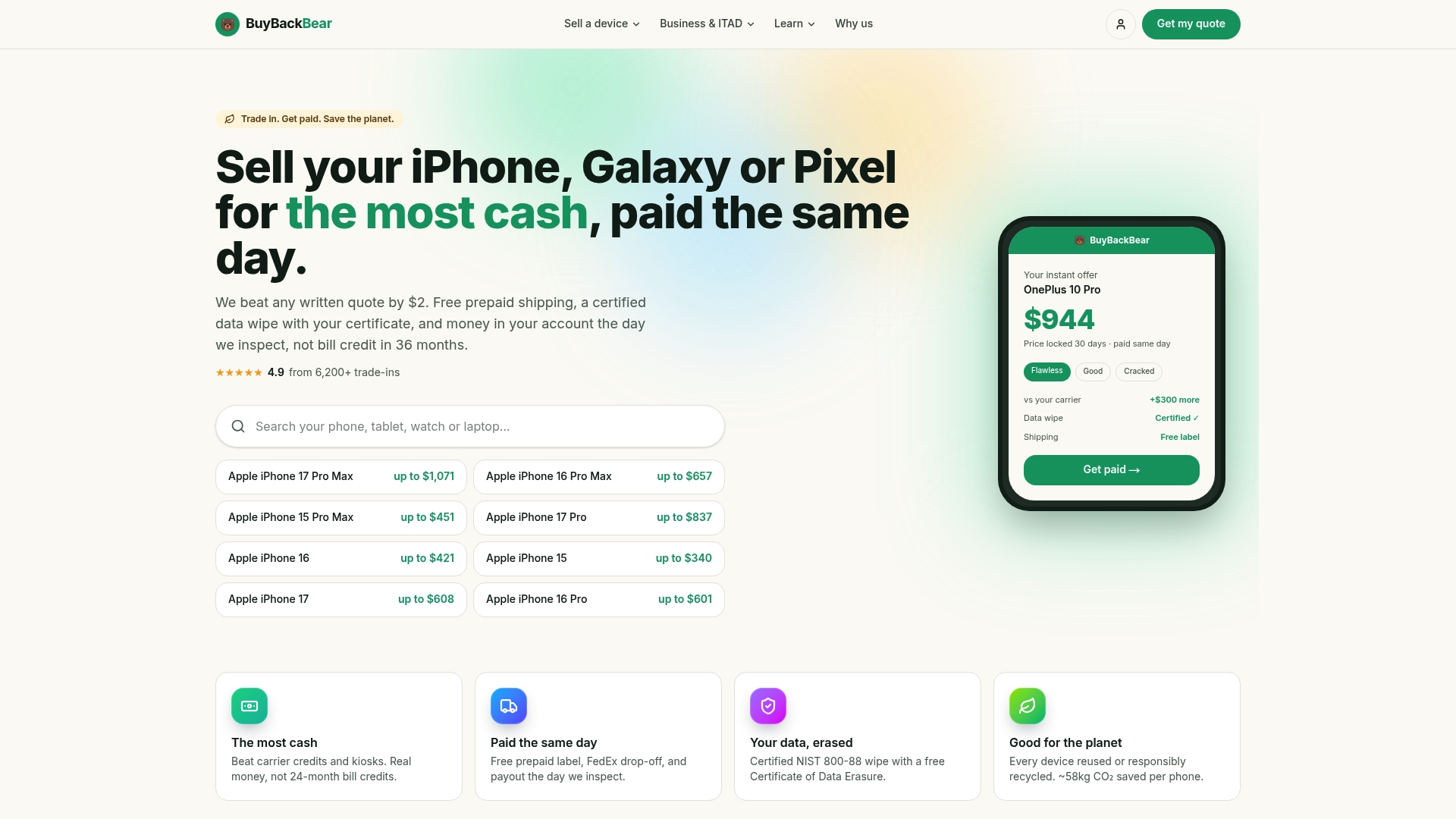
Every device gets wiped to the NIST 800-88 standard with a free Certificate of Data Erasure, so you get documented proof your old data is unrecoverable, not just a factory-reset screen and a hope. That matters whether you’re clearing out an old iPhone or handing off a work laptop. The process itself is four steps: get an instant quote online, ship the device free with a prepaid label, get your offer confirmed after inspection, and get paid. If your old phone still works, or even if it’s cracked or dead, get your quote and start the sale once your new phone is verified and ready.
Sources
- Set up your Android device
- Use Quick Start to transfer data to a new iPhone or iPad
- About Smart Switch
- How to transfer your WhatsApp account to a new phone
- What to know before you upgrade your phone. And how to protect your new one
FAQ
How Do I Transfer Everything From My Old Phone to My New One?
Use direct device-to-device transfer when both phones are present: Quick Start for iPhone, a cable-based transfer for Android setup. When you only have the new device, restore from your Apple or Google cloud backup instead, and expect background downloads to continue for a while after setup finishes.
What Won’t Transfer to a New Phone?
Call logs on certain carriers, most authenticator app codes, and some app-specific local data typically don’t carry over, especially across platforms. WhatsApp call history specifically doesn’t transfer between Android and iPhone, and banking apps almost always require a fresh login regardless of transfer method.
How Do I Transfer My Mobile Data to a New Phone?
Back up first, then choose the method that matches your device pair: cable or wireless direct transfer for Android-to-Android, Quick Start or iCloud restore for iPhone-to-iPhone, or Move to iOS and Smart Switch for crossing platforms. Keep both devices charged and on Wi-Fi until any background restore finishes, which can take up to 24 hours for large libraries.
Can I Transfer My Phone by Myself?
Yes. Every method covered here, Quick Start, Smart Switch, Move to iOS, and cloud restores, is designed for you to run without any technical help, provided you have your account credentials and both devices charged. The steps that trip people up are usually preparation, not execution: forgetting a password, an expired 2FA code, or a phone that dies mid-transfer.
Should I Sell My Old Phone After Transferring My Data?
Once you’ve verified everything moved over and wiped the old device properly, selling it is often better than letting it sit in a drawer. Buybackbear buys phones in any condition and pays via PayPal, Venmo, debit card, or bank transfer the same day it’s inspected, with a NIST 800-88 erasure certificate included for every device.
Recommended
Ready to sell?
Get an instant quote, free prepaid shipping, and fast cash that beats carrier trade-in credit.
Selling your device here, at a glance
Get my instant quote →- Instant quote in about 30 seconds, price locked while you decide
- Cash by PayPal, Zelle, Venmo or check after inspection, no fees
- Free prepaid label both ways, free return shipping if you decline
- We beat any competitor's written quote by $2
- Cracked screen, broken or won't power on? Still worth real money
- Certified NIST 800-88 data wipe with an emailed certificate
- Trade-in value paid in cash, not a 24-36 month carrier bill credit
- Every model priced: unlocked or carrier-locked, any storage size