How to Turn Off Find My iPhone Before You Sell
August 9, 2026
To turn off Find My iPhone, go to Settings > [your name] > Find My > Find My iPhone, toggle it off, and enter your Apple ID password when prompted. If you no longer have the device, sign in to Icloud, select the device, and choose Remove This Device to lift Activation Lock remotely. Either method clears Activation Lock, which is the security feature that prevents a new owner from activating the phone.
Pro Tip: Before you do anything else, confirm you know your Apple ID password. Without it, you cannot disable Find My on the device or complete a remote removal.
Verification takes ten seconds: open the Find My app or sign in to iCloud.com and check that the device no longer appears in your devices list. Per Apple Support, Activation Lock turns on automatically the moment Find My is enabled, so confirming its removal is the one step most sellers skip and later regret.
Key Takeaways
Disabling Find My iPhone removes Activation Lock, which is required before selling, trading in, or sending a device for service.
| Point | Details |
|---|---|
| On-device method | Go to Settings > [your name] > Find My > Find My iPhone, toggle off, and enter your Apple ID password. |
| Remote removal | Sign in to iCloud.com/find, erase the device, then choose Remove This Device to lift Activation Lock. |
| Activation Lock | Turns on automatically with Find My; prevents reactivation without the original Apple ID credentials. |
| Greyed-out toggle | Usually caused by MDM, a configuration profile, or a forgotten Apple ID password; reset at iforgot.apple.com. |
| Buybackbear | After disabling Find My and erasing your device, get an instant cash quote at buybackbear.com/sell/apple/. |
Table of Contents
- How do you turn off Find My iPhone on the device?
- How do you remove a device from Find My remotely?
- What does Activation Lock actually protect against?
- Before you sell, trade in, or send your iPhone for service
- Find My toggle greyed out? Here’s how to fix it
- How to pause location sharing without turning off Find My
- Ready to sell? Buybackbear pays cash the same day we inspect
- Sources
- FAQ
How do you turn off Find My iPhone on the device?
The on-device method is the cleanest option when you still have the phone in hand. The whole process takes under two minutes.
- Open Settings and tap your name at the top.
- Tap Find My, then tap Find My iPhone.
- Toggle Find My iPhone off.
- Enter your Apple ID password when the prompt appears and tap Turn Off.
That’s it. Apple’s official guide confirms the password prompt is required to prevent unauthorized disabling. Once you tap Turn Off, Activation Lock is removed immediately. The toggle returns to gray, and the device drops from your Find My devices list within a few minutes.
What you’ll see on screen: a single password dialog, no secondary confirmation screen. The whole toggle-to-confirmation sequence runs in about 30 seconds once you’re in the right menu.
Pro Tip: If you’re selling the phone, don’t stop here. After disabling Find My, go back to Settings, tap your name, scroll to the bottom, and tap Sign Out to remove your Apple ID from the device entirely before erasing.
How do you remove a device from Find My remotely?
Remote removal is the right move when the phone is already gone, sold, or sitting at a repair shop. You have two paths: iCloud.com in a browser, or the Find My app on another Apple device signed in to the same Apple ID.
Using iCloud.com
- Go to icloud.com/find and sign in with your Apple ID.
- Click All Devices and select the device you want to remove.
- If the device still has content, click Erase This Device first and confirm with your Apple ID password.
- Once erased, click Remove This Device.
Per Apple Support, removing the device this way immediately lifts Activation Lock so a new owner can activate it and link it to their own Apple ID.
Using the Find My app
Open the Find My app on any Apple device signed in to your Apple ID, tap the Devices tab, select the device, scroll down, and tap Remove This Device. For a device that’s already been erased and is offline, this still works as long as it appears in your list.
Pro Tip: Always erase first, then remove. Erasing alone does not always clear Activation Lock if the removal step is skipped. Do both, in that order, and the buyer gets a clean device.
| On-device disable | Remote via iCloud.com | Remote via Find My app | |
|---|---|---|---|
| Requires device access | Yes | No | No |
| Requires Apple ID password | Yes | Yes | Yes |
| Removes Activation Lock immediately | Yes | Yes, after erase + remove | Yes, after erase + remove |
| Best scenario | Selling, trade-in, repair prep | Device already transferred or lost | Device erased and offline |
What does Activation Lock actually protect against?
Activation Lock ties your iPhone to your Apple ID the moment Find My is switched on. Anyone who erases or tries to reactivate the device without your Apple ID credentials hits a wall. That’s intentional: it makes a stolen iPhone nearly worthless to a thief who can’t get past the activation screen.
Beyond theft deterrence, Find My gives you real recovery tools. You can locate a lost device on a map, play a sound, put it in Lost Mode, or erase it remotely. Those features disappear the moment Find My is off, so disabling it makes sense only when you’re ready to hand the device to someone else.
When it’s appropriate to turn it off:
- Selling or gifting the device to another person
- Trading it in through a carrier or buyback service
- Sending it to Apple or an authorized service provider for repair
Apple explicitly recommends disabling Find My before any of those scenarios. And authorized service providers require it because Activation Lock blocks the diagnostic access technicians need.
When to leave it on: any time the device stays in your possession. There’s no security benefit to disabling it on a phone you’re keeping.
Back up your data before you disable Find My. Turning off Find My is often followed by a full erase, and an iCloud or iTunes backup takes five minutes. Skip it and you skip your only safety net.
Before you sell, trade in, or send your iPhone for service
Run through this list before the device leaves your hands. Missing any step can lock out the buyer or expose your data.
| Step | Action | Why it matters |
|---|---|---|
| 1. Back up | iCloud backup or Finder/iTunes on Mac | Protects your data before erase |
| 2. Sign out of iCloud | Settings > [your name] > Sign Out | Unlinks Apple ID from the device |
| 3. Turn off Find My | Settings > [your name] > Find My > Find My iPhone | Removes Activation Lock |
| 4. Erase all content | Settings > General > Transfer or Reset iPhone > Erase All Content | Wipes personal data |
| 5. Remove SIM | Eject tray with SIM tool | Keeps your number and carrier plan |
If you already sold or gave away the device without completing these steps, use iCloud.com/find to erase and remove it remotely. The erase flow prompts for your Apple ID password and clears Activation Lock as part of the process.
The buyer or service provider can verify Activation Lock is off by visiting Apple or attempting to set up the device. If it reaches the Hello screen without asking for a previous owner’s Apple ID, Activation Lock is gone.
Find My toggle greyed out? Here’s how to fix it
A greyed-out Find My toggle almost always means one of three things: the device is managed by an organization, there’s a configuration profile blocking the setting, or the Apple ID session has a problem.
Common causes and fixes:
- MDM or supervised device: If the phone was issued by a school, employer, or carrier, an IT administrator may have locked the Find My toggle. You cannot override this yourself. Contact the organization’s IT admin or ask them to remove the device from their MDM system. A device supervised by an organization requires admin action, not a workaround.
- Configuration profile installed: Go to Settings > General > VPN & Device Management. If a profile is listed that you don’t recognize or no longer need, remove it. After removal, restart the phone and check the toggle again.
- iOS needs updating: An outdated iOS version occasionally causes toggle display issues. Go to Settings > General > Software Update and install any available update.
- Forgotten Apple ID password: You can’t disable Find My without the password. Reset it at Iforgot. Recovery takes a few minutes if you have a trusted device or phone number on file; longer if you need account recovery.
- Remote removal as a fallback: If none of the above applies and you still can’t toggle it off on the device, sign in to iCloud.com/find and remove the device from there.
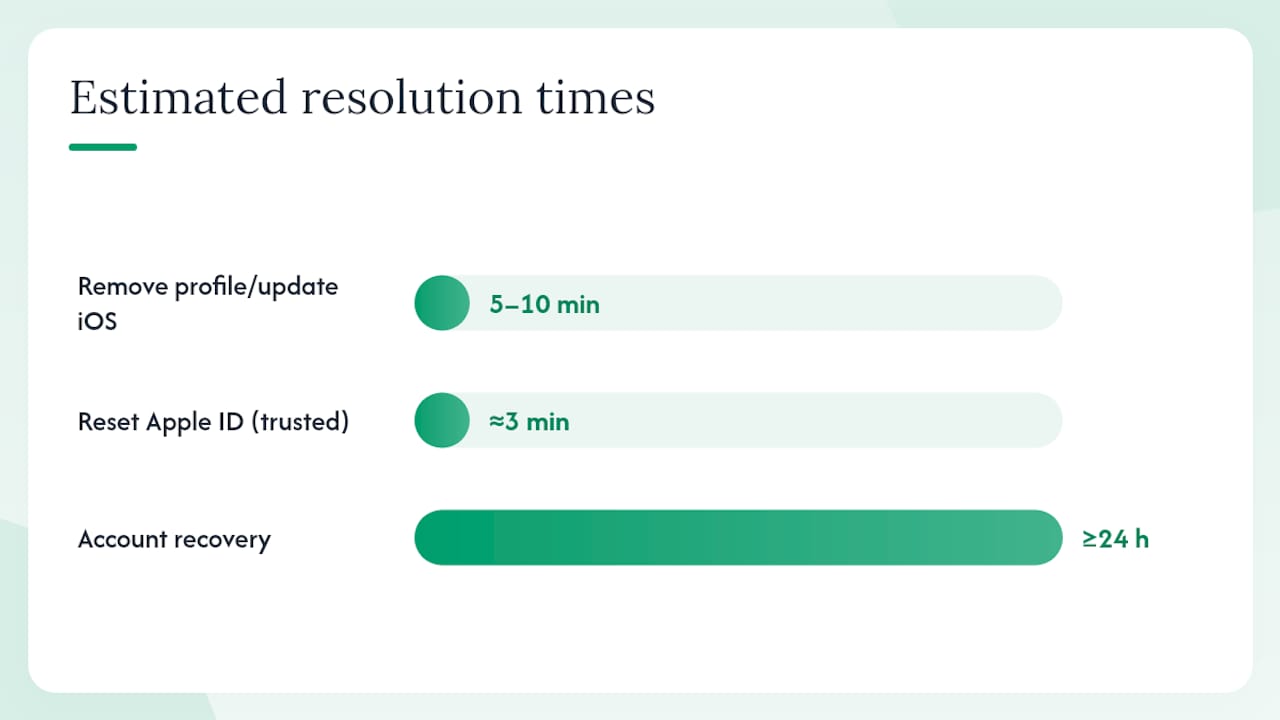
Estimated resolution time: removing a profile or updating iOS takes 5–10 minutes. MDM removal depends on your IT team. Apple ID password reset via trusted device runs about 3 minutes; account recovery can take 24 hours or more.
How to pause location sharing without turning off Find My
You don’t have to disable Find My entirely just to stop sharing your location with specific people. Apple gives you a few targeted options.
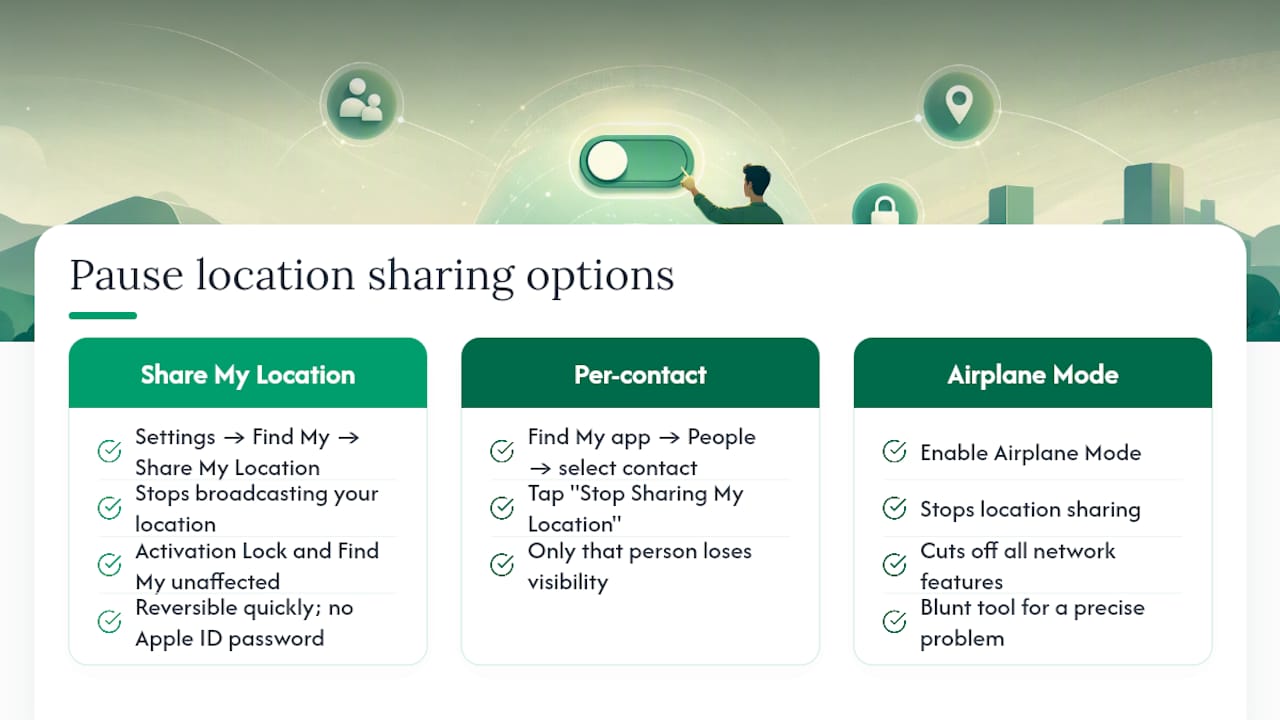
Go to Settings > [your name] > Find My > Share My Location and toggle it off. This stops broadcasting your location to anyone in your contacts or family group without touching Activation Lock or the device’s Find My status. Your device still appears in your own Find My app, and theft protection stays fully active.
For per-contact control, open the Find My app, tap People, select a contact, and tap Stop Sharing My Location. That person loses visibility of your location while everyone else in your sharing list sees nothing change.
Airplane Mode also stops location sharing, but it cuts off all network features simultaneously, so it’s a blunt tool for a precise problem.
Pro Tip: Use the Share My Location toggle for temporary privacy. It’s reversible in seconds, keeps Activation Lock intact, and doesn’t require your Apple ID password to re-enable.
Preparing my iPhone to sell: the order that actually matters
The sequence matters more than most people realize. Here’s the order that prevents buyer lockouts and data exposure:
- Back up to iCloud or your Mac first. Everything else is irreversible.
- Sign out of all services (iMessage, FaceTime, iCloud) via Settings > [your name] > Sign Out.
- Turn off Find My as described above. This is the step that clears Activation Lock.
- Erase All Content and Settings. The phone will prompt for your Apple ID password one final time, which confirms the erase and removes Find My as part of the flow.
- Ship or hand over the device.
To verify Activation Lock is cleared after the erase, power the phone back on. If it reaches the language/region setup screen without asking for a previous Apple ID, you’re done. That’s the confirmation most sellers never think to check, and it’s the one a buyer will check immediately.
Ready to sell? Buybackbear pays cash the same day we inspect
Once Find My is off and your iPhone is erased, the hardest part is behind you. Buybackbear makes the rest straightforward: get an instant quote for your Apple device, ship it free with a prepaid label, and get paid by PayPal, Venmo, debit card, or bank transfer the same day we inspect it. No bill credits spread over two years. Real cash, same day.
Every device Buybackbear receives is wiped to the NIST 800-88 standard with a free Certificate of Data Erasure, so even if you missed a step in the checklist above, your data is covered. Buybackbear also beats any written competitor quote by a competitive amount which means you’re not leaving money on the table by skipping the carrier trade-in route.
Get your instant quote and see what your iPhone is worth today.
Sources
These are the primary Apple Support pages referenced throughout this guide.
Turn off Find My on iPhone. On-device steps, password requirements, and what changes immediately after the toggle is off.
Remove a device from Find Devices on iCloud.com. Remote removal flow for devices you no longer have in hand.
Activation Lock for iPhone and iPad. What Activation Lock is, how it activates, and why it matters for buyers and sellers.
Turn off Find My on your devices and items. Apple’s own recommendation to disable Find My before selling, gifting, or servicing.
Prepare a device for service. Service requirements, including why Find My must be off before repair.
Erase your device to remove Find My and Activation Lock. How the erase flow handles Activation Lock removal automatically.
If your situation isn’t covered by these pages, contact Apple Support directly or visit an Apple Authorized Service Provider for hands-on help.
- Activation Lock for iPhone and iPad - Apple Support
FAQ
How do I turn off Find My iPhone if the toggle is greyed out?
A greyed-out toggle usually means the device is managed by an MDM profile or a school/work configuration. Check Settings > General > VPN & Device Management for installed profiles; remove any you control, then restart. If the device is organization-supervised, contact the IT admin.
How do I turn off Find My iPhone without the phone?
Sign in to icloud.com/find, select the device, erase it, then click Remove This Device. This lifts Activation Lock remotely so the next owner can activate the phone.
How do I temporarily stop Find My iPhone from sharing my location?
Go to Settings > [your name] > Find My > Share My Location and toggle it off. This pauses location sharing with contacts while keeping Activation Lock and theft protection fully active.
Can I remove a device from Find My after I’ve already sold it?
Yes. Sign in to iCloud.com/find from any browser, select the device, erase it, and choose Remove This Device. Activation Lock clears immediately, and the new owner can complete setup.
Recommended
Ready to sell?
Get an instant quote, free prepaid shipping, and fast cash that beats carrier trade-in credit.
Selling your device here, at a glance
Get my instant quote →- Instant quote in about 30 seconds, price locked while you decide
- Cash by PayPal, Zelle, Venmo or check after inspection, no fees
- Free prepaid label both ways, free return shipping if you decline
- We beat any competitor's written quote by $2
- Cracked screen, broken or won't power on? Still worth real money
- Certified NIST 800-88 data wipe with an emailed certificate
- Trade-in value paid in cash, not a 24-36 month carrier bill credit
- Every model priced: unlocked or carrier-locked, any storage size